The Settings tab contains subsections which enable you to view and update the company information displayed on your website, as well as manage the SEO and edit domain information.
There are four sections to manage the site settings:
Site Details
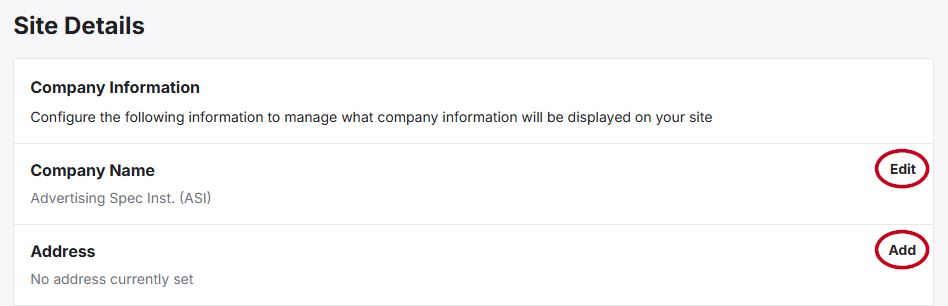
In the Site Details section, you can view, add, and or edit the information about your company, such as the name, address, email, phone number, and social media links. Click on Add to enter new information for a field and then click on Save when the information has been entered.
If there is already information within a field, click on “Edit” to update it.
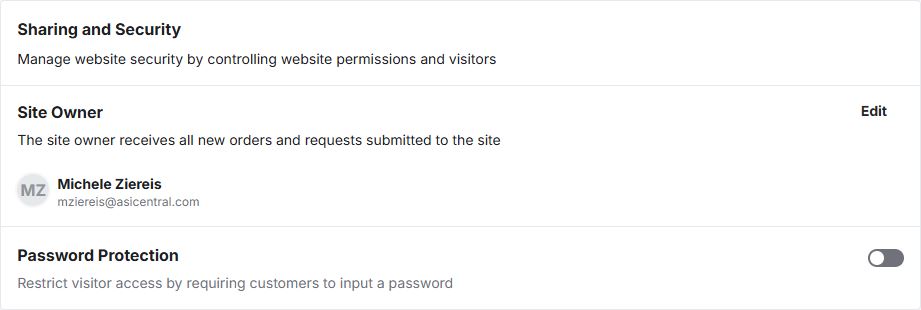
Additionally in the Site Details, there are several options for customizing the site, such as adding emails to receive order notification, and security options for the site, such as the owner and whether to enable password protection. The Brand Information such as the company logo, logo link, and company color can be customized in this section as well.
- Company Name: The Company Name will be automatically filled in with the name listed in the Company Settings area of the Account.
- Address: The physical location of the company.
- Email: The main contact email for site correspondence.
- Phone: The main contact phone number for your company.
- Social Media Links: Enter links to your company's social media pages for the following platforms:
- Blog
- Order CC Settings: Specify additional email addresses to receive order notifications.
- Site Owner: The site owner receives all new orders and requests submitted to the site.
The Sharing and Security section is where you change site owner and enable password protection.
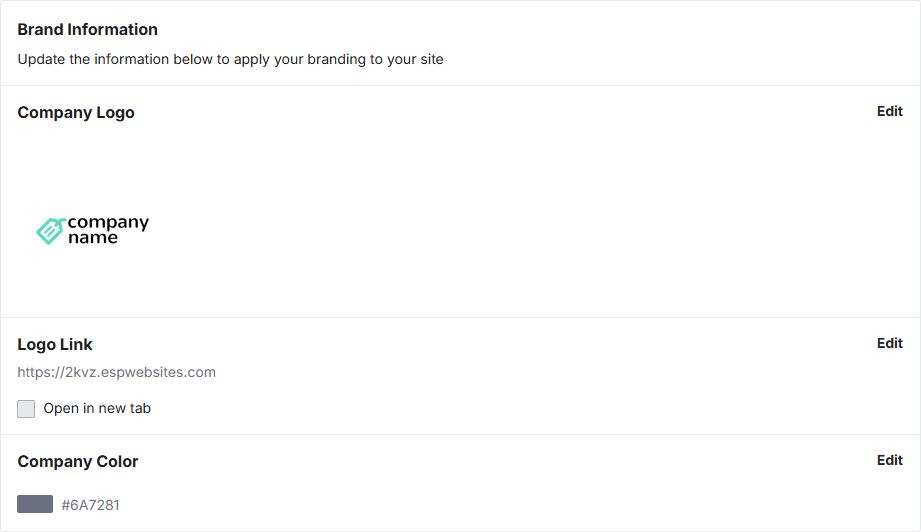
The Site Info section also contains a section where you can manage the Brand Information for your site. In this section, you can add or update your company logo and color, as well as link the logo to a specific URL.
Localization
The localization area allows you to choose site preferences for US and Canadian markets.
- Market Segment: Choose which market to ship products to.
- Language Translation: Automatically show content using the visitor's preferred language setting.
- Currency: Select which currency the price will display in, and set the conversion rate.
SEO & Marketing
SEO is an abbreviation for Search Engine Optimization. SEO enabled search engines, such as Google, to recognize and display your website when relevant searches are performed.
In the Site Level SEO section, you are able to configure the following settings to manage how store level information shows on various platforms:
- Favicon:A favicon is the small icon displayed on the browser tab. It is normally 35 pixels by 35 pixels. Click on the Add link to select an image. Allowed file types are .ico, .jpeg, .jpg, .png, .svg.
- Site Title: The Site Title is the text that appears in search engine results and on the browser tab. Click on the Add link, type the title, and then click Save.
- Meta Description:The Meta Description is a short, descriptive blurb about the site (generally around 160 characters or less) that displays below the site title in search engine results. Click on the Add link, type the description, and then click Save.
- Site Keywords:Enter up to ten (10) words or phrases related to your site. Click on the Add link, enter the word or phrase and then hit enter on your keyboard. When you are finished entering keywords, click on the Save button.
- Social Media Sharing Image:The Social Media Sharing Image section enables you to upload an image to display as a default when no image is specified on the page that is being shared. Click on the Add link to select an image and click on Save when you are finished. Allowed file types are .jpeg, .jpg, .png.
In the Google Analytics section, you can enable and configure Google Tag Manager and/or Google Analytics for your website. Use the slider to enable the service you would like. Then, enter the appropriate ID: Container ID for Google Tag Manager and/or Measurement ID for Google Analytics.
Domains
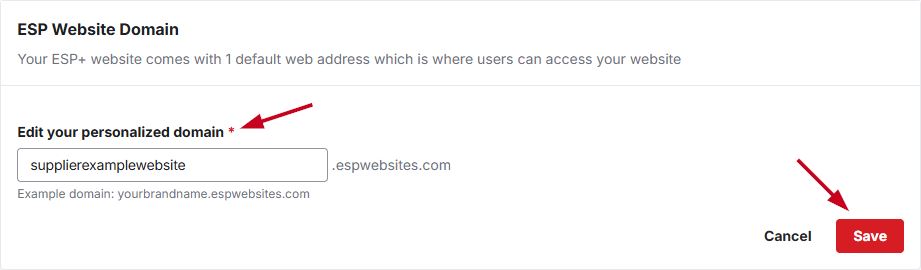
An ESP+ Website provides a default web address that can be customized. the default URL may be a combination of letters and numbers followed by “.espwebsites.com". To update this URL, click on the Edit link and type a personalized domain to replace the letters and numbers. Then, click on the "Save" button.
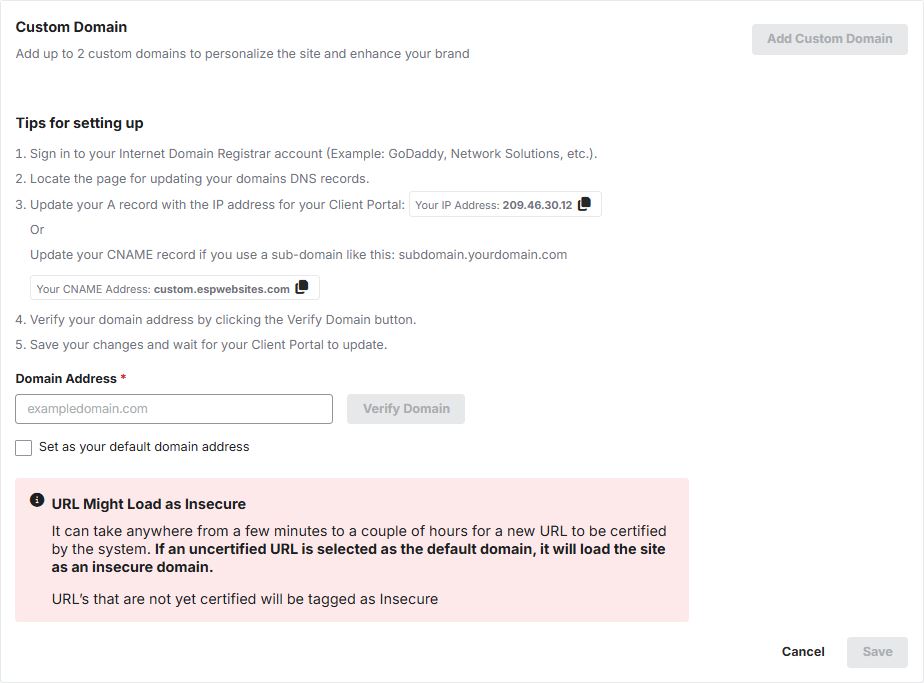
It is important to note that all default domains for ESP+ websites will end in “.espwebsites.com" but if you have a custom domain registered with a third party, such as GoDaddy, Network Solutions, etc, you can have that domain redirected to your ESP+ Website. To do this, click on the Add Custom Domain button and follow the tips for setting up listed in this section. When you are finished, click on the Save button.
Custom Domains
A custom domain is a URL hosted by a third party domain registrar (for example, GoDaddy, Network Solutions, etc.). After clicking on the Add Custom Domain button, the tips for setting up a custom domain will be displayed.
After following the steps listed, type your domain address in the available box. Then, click on the Verify Domain button. Check the box to have your custom URL set as your default domain address.
After reviewing the URL security disclaimer, click on the Save button.