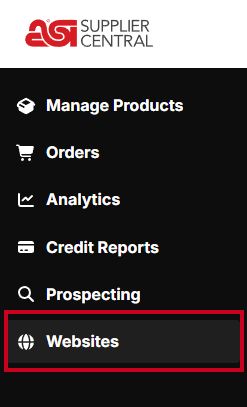
To access the website admin, log into ESP+ for Suppliers and click on "Websites" from the main toolbar.
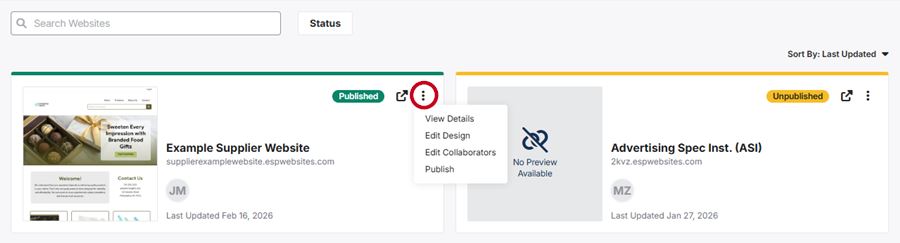
An already created site will be listed as a tile in the "Websites" section.
Each tile will include a quick tag indicating if the site is published or unpublished, alongside an icon to open a preview of your site in a new tab. Published sites will be displayed with a thumbnail of the live site. Additionally, each tile will contain a three-dot menu which will enable you to:
- View Details: Opens the website admin in the "Overview" section
- Edit Design: Displays the "Site Design" section
- Edit Collaborators: Enables you to designate other users in your company to view and/or update this website
- Publish: Makes the site for the very first time or publishes any saved changes
Clicking on "View Details" from the three-dot menu or anywhere on the general listing will open the site editor in the "Overview" area.
Overview Section
The Overview area will be displayed when you open the site admin. In this area, there are four subsections with shortcut links to the other admin options:
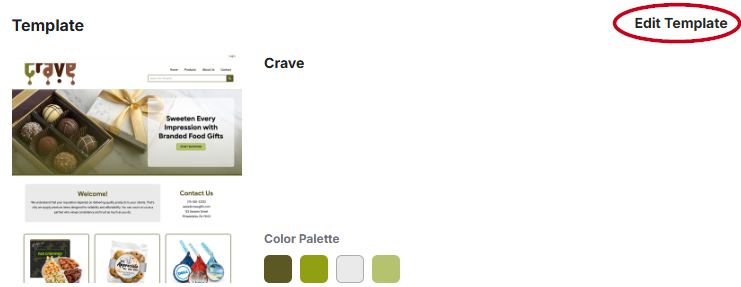
Template
The Template subsection displays the template name and quick description of the features within as well as color palette swatches. Clicking on Edit Template move you into the Site Design where you can choose a new template, reset/customize the color pallette, and access the Pages editor.
Site Summary
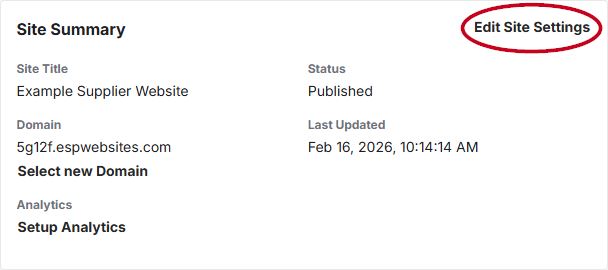
The Site Summary subsection provides basic information for the site, including the site title, status, domain, last updated date, and analytics (if available). To update or add information related to the website settings, click on the Edit Site Settings link to move to the Settings section.
Products
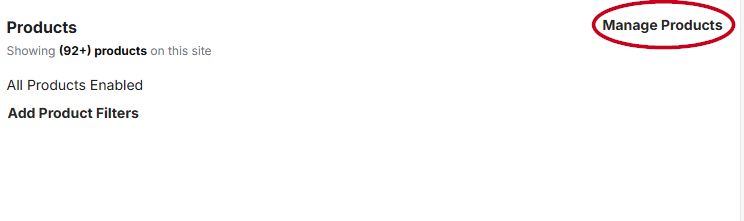
The Products subsection provides information regarding the current filters on your website. Click on the Manage Products link to move to the Products tab to update the product information.
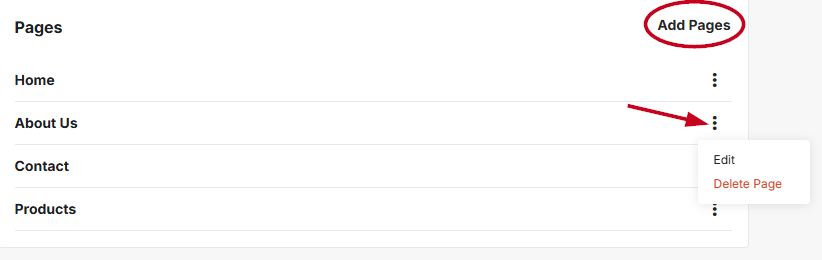
Pages
The Pages subsection will display all pages on the website. You can click on the Add Page link open the pages section, as well as use the three dot icon to "Edit" or "Delete" an individual page. It is important to note that the "Delete Page" option will not be available for the Home or Products pages.