


There are several options for accessing the upload a new report option:
- From the Overview section:
Click on the "Upload New Report" button.
- From the Reports section:
Click on the "Upload New Report" button.
Upload New Report
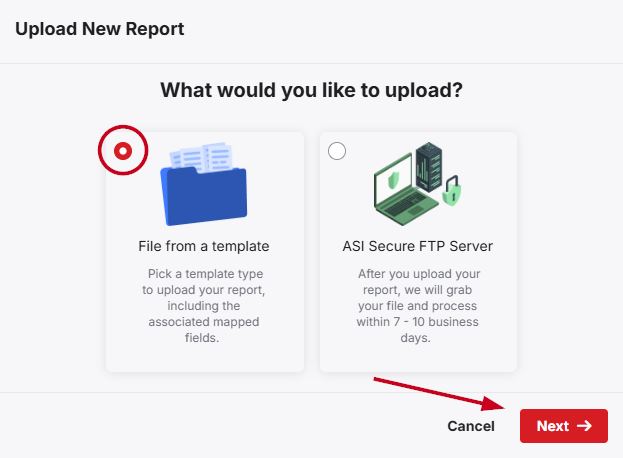
In the "Upload New Report" window, select which upload method you would like to use after uploading an .xlsx, .csv, or .txt file from your computer.:
- File from a template:
Allows you to map the fields from the file to specific fields on the credit report. - ASI secure FTP server:
ASI provides templates for your data and will processes the file for you within 7 - 10 business days.
File from a Template
To upload a report and map the fields manually, select "File from a template" and click on the "Next" button.
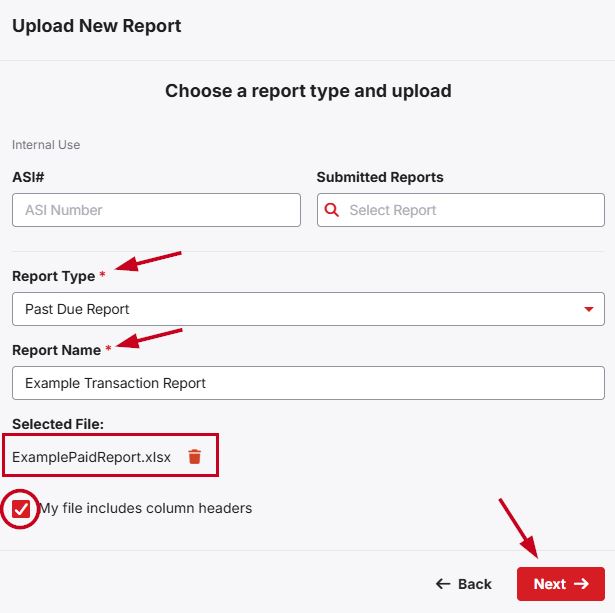
Choose the Report Type, enter the Report Name, and then browse your computer for the file. You can upload files in an .xlsx, .csv or .txt format. Click on the "Choose File to Upload" button or drag and drop the file from your computer to this box. If the report file contains headers, click the "My file includes column headers" checbox. Then, click the "Next" button.
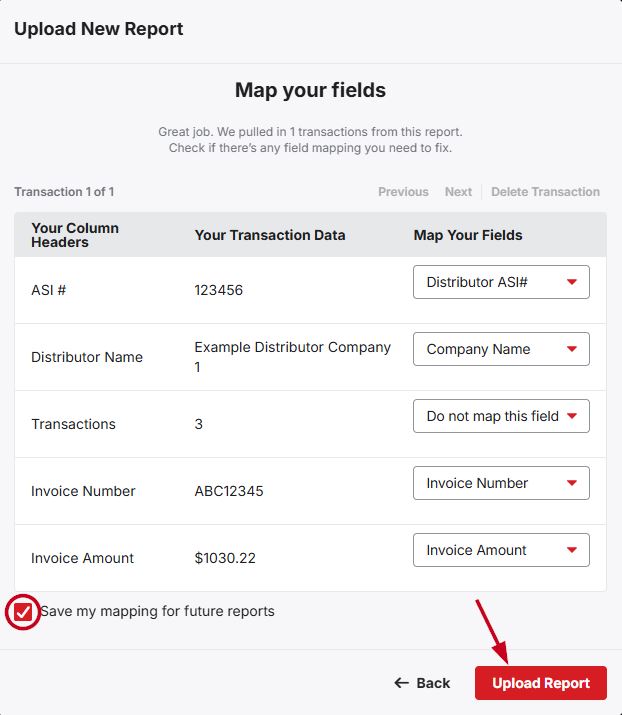
To make sure all the report fields are uploaded to the proper ASI fields, you will need to map your report data. You will see how many transactions you have uploaded, as well as the column headers and the data for the first transaction of your report. Use the dropdowns in the Map Your Field column to select the appropriate Connect field for your data. You can also check the "Save my mapping for future reports" checkbox to save your selections in the Map Your Fields dropdowns. After you have completed reviewing and mapping your report's data, click on the "Upload Report" button.
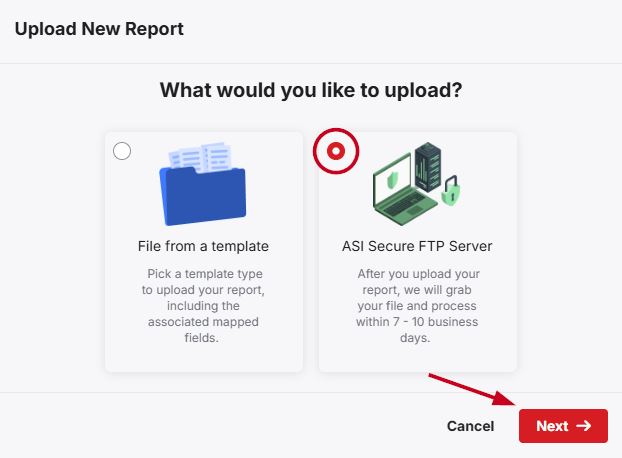
ASI secure FTP server
To download an ASI provided template and upload the report to be processed, select "ASI Secure FTP Server" option and then click on the "Next" button.
For faster processing, we recommend clicking on the "Download Templates" links and using one of the provided templates for your report.
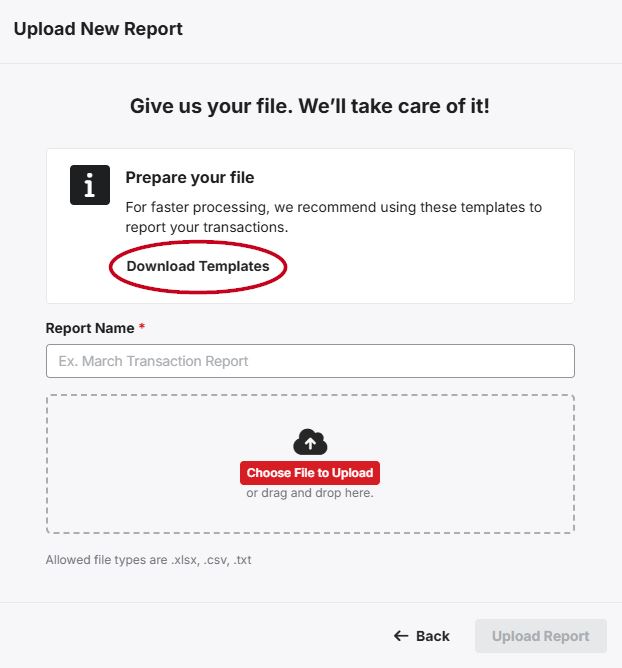
When the file is prepared, enter the Report Name, and then browse your computer for the file. You can upload files in an .xlsx, .csv or .txt format. Click on the "Choose File to Upload" button or drag and drop the file from your computer to this box. Then, click the "Next" button.
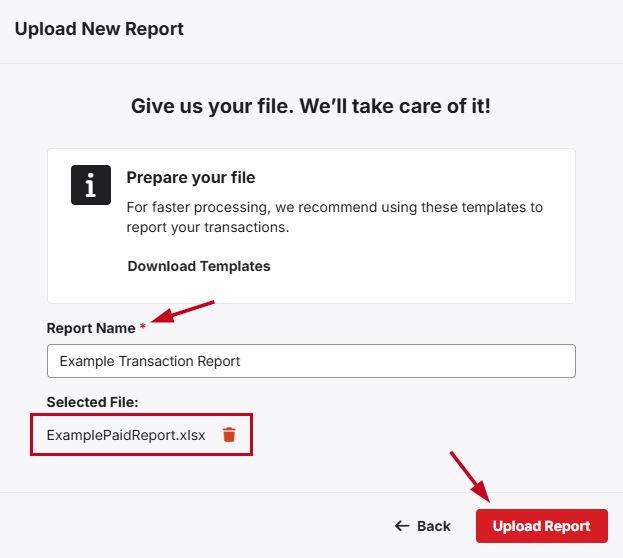
If any transactions do not upload properly, an error message will display, and you can correct any issues. When all transactions have been successfully uploaded, an on-screen notification and email confirm completion.
To view previously-uploaded or recent reports, click on the My Reports button in the main navigation toolbar. All previously uploaded reports will be displayed and you can click on the "View Report" link to see the information within a report.