


Use Multiple Price Grids when your product has multiple prices based on a combination of two attributes. Please keep in mind, two is the maximum number of attributes which can be used for base pricing. An example of two attributes would be size and color. If the pricing is based on one attribute, such as color, please review the "Multiple Price Grids Based on One Attributes" section above.
To use Multiple Price Grids, click on the Pricing Tab then select the "Use Multiple Price Grids" option.

After selecting the "Use Multiple Price Grids" option, the Multiple Price Grid Setup window will display all available criteria for base pricing. You can add as many price grids as needed. For example, if the product is a T-Shirt and the pricing is based on the color and the size because the basic white T-Shirt is less costly than the colored shirts, plus both options are available in standard and extended sizes, four price grids are needed.
To set up four price grids based on color and size:
- Check the Size box and then check the Product Color box. The number of possible variations will be shown in a grey bar below the checkboxes.
- Click on the Next Step button.
- Check the options for the first price grid. In the example with the T-Shirt, the first price grid is for the white shirt in standard sizes. Check the box for "White" and then check sizes "XS" through "XL".
- Click on the Save & Add Another Configuration button. This will create a price grid for the white shirt in sizes XS-XL and then clear the checkboxes so the criteria for the second price grid can be selected.
- The second price grid is for the white shirt in extended sizes. Check the box for "White" and then check sizes "2XL" through "4XL".
- Click on the Save & Add Another Configuration button.
- The second price grid is for the colored shirts in standard sizes. Check each color box and then check sizes "XS" through "XL".
- Click on the Save & Add Another Configuration button. This will create a price grid for the white shirt in sizes XS-XL and then clear the checkboxes so the criteria for the second price grid can be selected.
- The fourth price grid is for the colored shirt in extended sizes. Check each color box and then check sizes "2XL" through "4XL".
- Click on the Save Configuration button.

There will now be four price grids available for base pricing. To enter the quantities and pricing for this product, there are two basic rules:
- Quantities must go from lowest to highest.
- List Prices and Net Costs must go from highest to lowest.
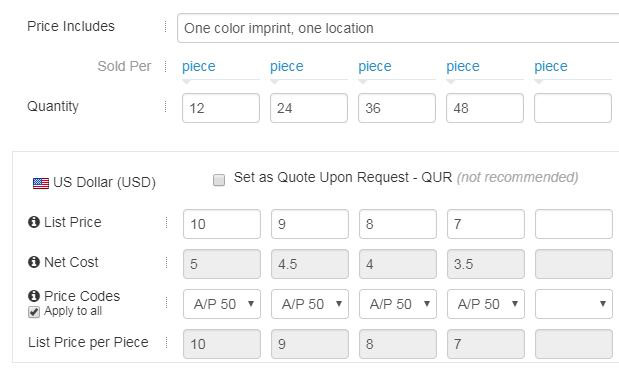
Use the Price Codes dropdown to select the discount code. The system will then calculate the net cost automatically. If the same price code applies to all the quantities in this price grid, check the Apply to All checkbox.
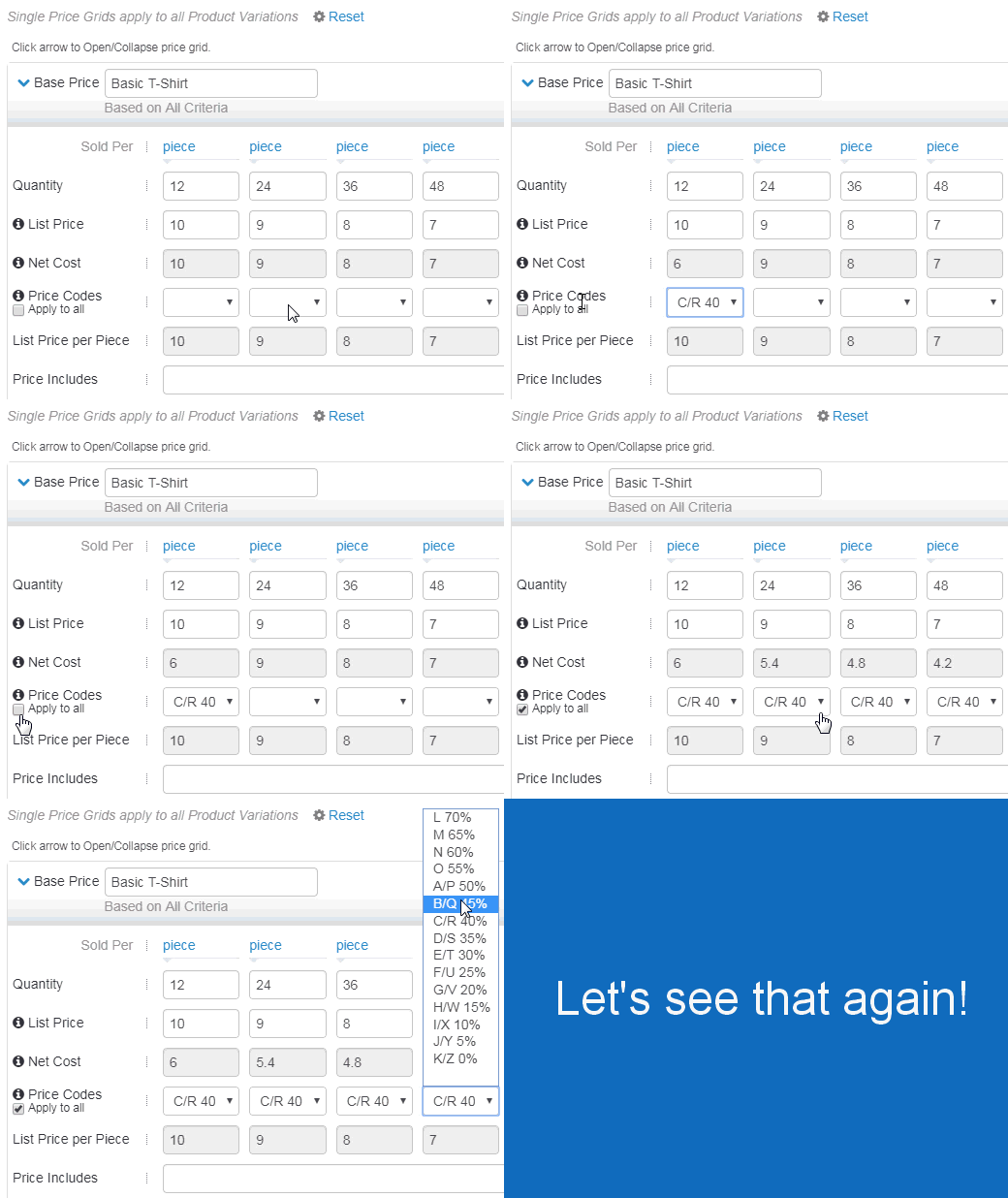
The List Price per Piece will be automatically calculated based on the sold per unit.
In the Price Includes box, indicate what is included in the base prices. For example, if the base price includes a one color, one location imprint, type “1 color, one location imprint” in the Price Includes field.
