


After logging into ASI Supplier Central and clicking on "Websites" from the main toolbar, you will be able to access the Websites Admin area. If there are not currently any websites available in the Websites area, click on the "Create Website" button.

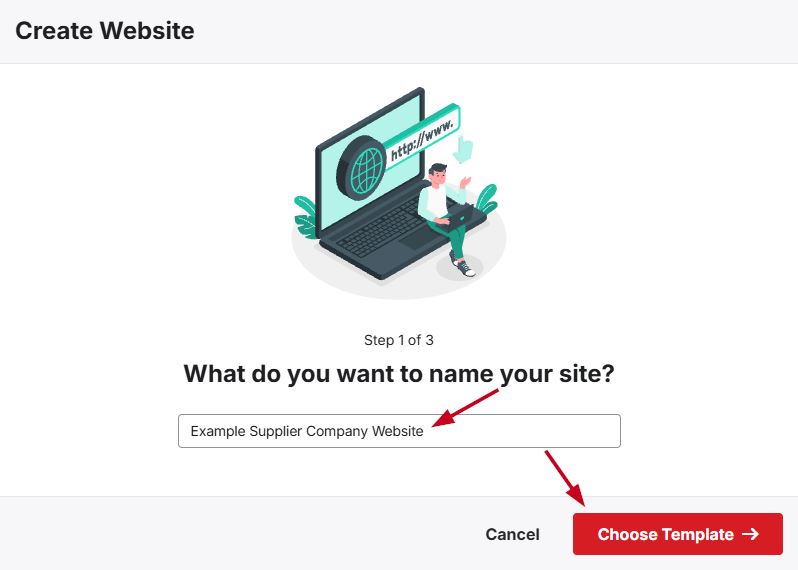
The "Create Website" window will prompt you to type the name of the website. After entering this information, click on the "Choose Template" button.
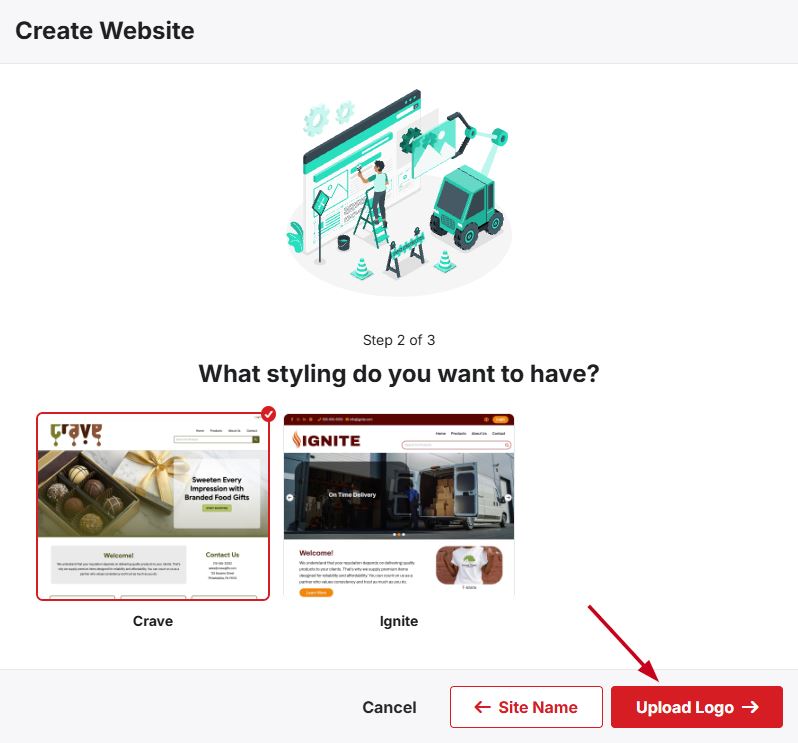
The available templates will be displayed. Hovering on a template will provide two options:
- Live Preview:
Opens an example of the template in a new tab - Select Template:
Chooses that template for your website
After you've made your selection, click on the Upload Logo button.
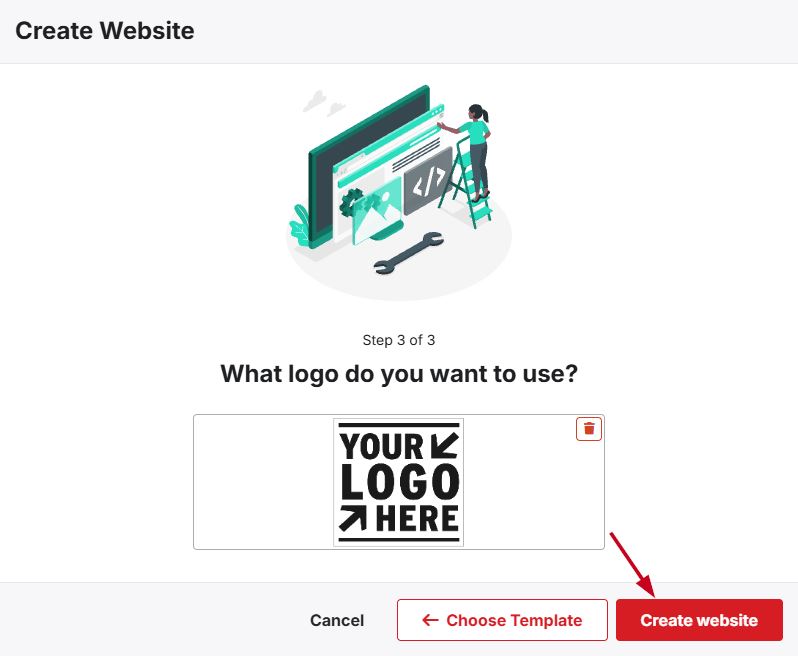
You can click on the "Choose Image to Upload" button to browse your computer, select an image from the asset library, or drag and drop an image file to this box. After giving the website a title, selected a template, and uploaded our logo, click on the "Create Website" button.
After a website has been created, the site editor will open and enable you to customize your site prior to publishing it. To make your site live, click on the "Publish Site" button.

You can now begin customizing your site by accessing the following areas in the site admin:
- Overview: View general information about the site and shortcuts to other admin areas
- Pages: Add, edit, and delete pages for your website
- Products: Select the fields that will be displayed for items on your website and manage product filters
- Order Management: Manage the payment options, shipping, and disclaimers
- Settings: View and update the company information, SEO, and domain(s)
- Site Design: Change the color palette, customize the header and/or footer, and update the template